
Copy files to Anbernic's stock OS over Wi-Fi: SFTP or Wi-Fi Transfer
Taking the SD card out every time you add a game gets old fast. Anbernic’s own system (the “stock OS” the handheld ships with) can share its files over Wi-Fi instead. This guide shows the way that’s already built in, SFTP, and the more flexible one, the free Wi-Fi Transfer app.
Tested on: Anbernic RG40XXH · Anbernic stock OS V1.1.0 · Wi-Fi Transfer 2.1.0.
Which one to use
| SFTP | Wi-Fi Transfer | |
|---|---|---|
| Comes with the stock OS | yes, switch it on once | free app, install it once (below) |
| On the PC or phone you need | an SFTP app (FileZilla, WinSCP, Cyberduck…) | a browser (or scan a QR code) |
| Log in with | root / root |
a PIN shown on the handheld |
| Works from a phone | only with an SFTP app | yes |
Puts games into the right Roms folder |
no | yes |
| Best for | big copies from a PC, the whole card | adding games, phones, quick changes |
Both only work while the handheld and your PC or phone are on the same Wi-Fi network. Connect the handheld to your Wi-Fi in the stock OS settings first.
Option 1: SFTP (built in)
The stock OS has an SSH server, which also does SFTP. Switch it on once: APPS → Modified System Settings → SSH Service → Enable (“Enable Temporarily” keeps it on only until the next restart).
- Find the handheld’s address, for example
192.168.1.23: your router’s list of connected devices shows it, and so does Wi-Fi Transfer when it’s open. - On your PC, open an SFTP app and connect with:
| Protocol | SFTP (not FTP) |
| Host | the handheld’s address, e.g. 192.168.1.23 |
| Port | 22 |
| User / password | root / root |
- Go to
/mnt/mmc: that’s SD card 1. Games go into/mnt/mmc/Roms/<SYSTEM>, for exampleRoms/GBAorRoms/FC(NES). A second SD card is/mnt/sdcard.
Change the password. root / root is the same on every handheld with this system, and anyone on your Wi-Fi can
use it. Log in once with an SSH terminal (ssh root@192.168.1.23 on a Mac, Linux or Windows command line), type
passwd and choose a new one; use it for SFTP from then on.
What about Samba? Modified System Settings also lists SAMBA Service, but on stock OS V1.1.0 the Samba server isn’t included, so switching it on doesn’t start a shared folder. Use SFTP or Wi-Fi Transfer instead.
Option 2: Wi-Fi Transfer (more flexible)
Wi-Fi Transfer works from any browser, on a phone too, needs no login details and sorts games into the right folder by itself.
Install it
The stock OS starts apps from the APPS folder on SD card 1, so installing means copying files there once, with a card reader or with SFTP from Option 1.
- Download Wi-Fi Transfer for Anbernic stock OS (
WiFiTransfer-<version>-stock.zip) from the Wi-Fi Transfer page and unzip it. - Copy what’s inside the zip’s
Roms/APPSfolder intoRoms/APPSon SD card 1 (/mnt/mmc/Roms/APPSover SFTP):Wi-Fi_Transfer.sh(the launcher),- the
wifitransferfolder (the app), Imgs/Wi-Fi_Transfer.png(its icon in the menu;Imgsalready exists, so copy just the picture into it).
Use it
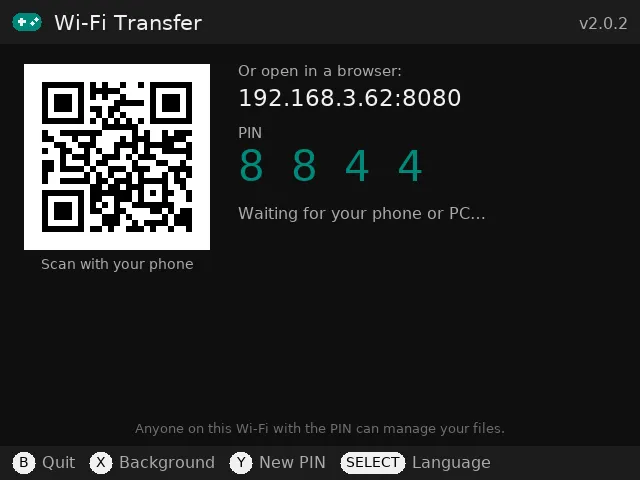
- On the handheld, open APPS → Wi-Fi_Transfer.
- Scan the QR code with your phone, or type the address shown (for example
http://192.168.1.23:8080) into a browser on the same Wi-Fi, and enter the PIN shown on the handheld.
The page shows the stock OS’s folders:
| On the page | On SD card 1 |
|---|---|
| ROMS | Roms: one folder per system |
| Saves | saves_RA: game saves and save states |
| BIOS | anbernic/bios, if your card has it |
| SD card 1 | everything on the card |
| ROMS and SD card 2 | the same on a second SD card, if one is in |
Tap Add games and pick your files: Wi-Fi Transfer puts each game in the stock OS’s folder for its system, for example
.gba → Roms/GBA, .nes → Roms/FC, .sfc → Roms/SFC, .md → Roms/MD. You can also open any folder and
upload, download, rename, move or delete files, tick several to download them as one .zip, and search both cards.
When you’re done, press B on the handheld.
Good to know
- The app follows the stock OS’s language (English, 日本語, 한국어, 简体中文, Español, Русский, Deutsch, Français); press SELECT to change it.
- On the stock OS, the full SD card backup and in-app updates aren’t available yet. Get new versions from the
Wi-Fi Transfer page and copy them over the old ones (your settings in
wifitransfer/datastay). - The transfer page only runs while the app is open (or in the background, if you press X), works only on your local network and needs a new PIN each time.
- If something goes wrong, the log is
Roms/APPS/wifitransfer/logs/app.log. Email it to feedback@pocketkode.com with your device and system version.
Using muOS instead? See how to copy files to muOS over Wi-Fi.
Wi-Fi Transfer is a free app by PocketKode. PocketKode isn’t affiliated with Anbernic.