
Handheld app
Wi-Fi Transfer
Move files to and from your game console from any phone or PC browser. No cables, card reader or extra apps.
- Version
- 2.0.2
- File
- .muxapp · 15.8 MB
- License
- GNU GPL v3
- Source
- GitHub
- Tested on
- Anbernic RG40XXH · muOS 2601.0 Jacaranda
Anbernic RG40XXV · muOS 2601.0 Jacaranda - Released
- Version
- 2.1.0
- File
- .zip · 15.9 MB
- License
- PocketKode Software License
- Tested on
- Anbernic RG40XXH · Anbernic stock OS V1.1.0
Anbernic RG40XXV · Anbernic stock OS V1.1.0 - Released
✓ Your download is starting… If it doesn't, tap here.
Every system
- Needs
- Wi-Fi, and a phone or PC on the same network
- Price
- Free
- Downloaded
What it does
Features
Any phone or PC
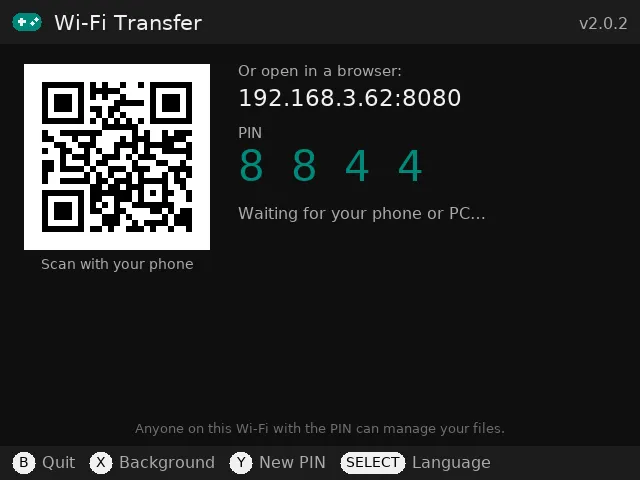
Scan the QR code or type the address into a browser on the same Wi-Fi. No cables, card reader or extra app.
Games go to the right folder
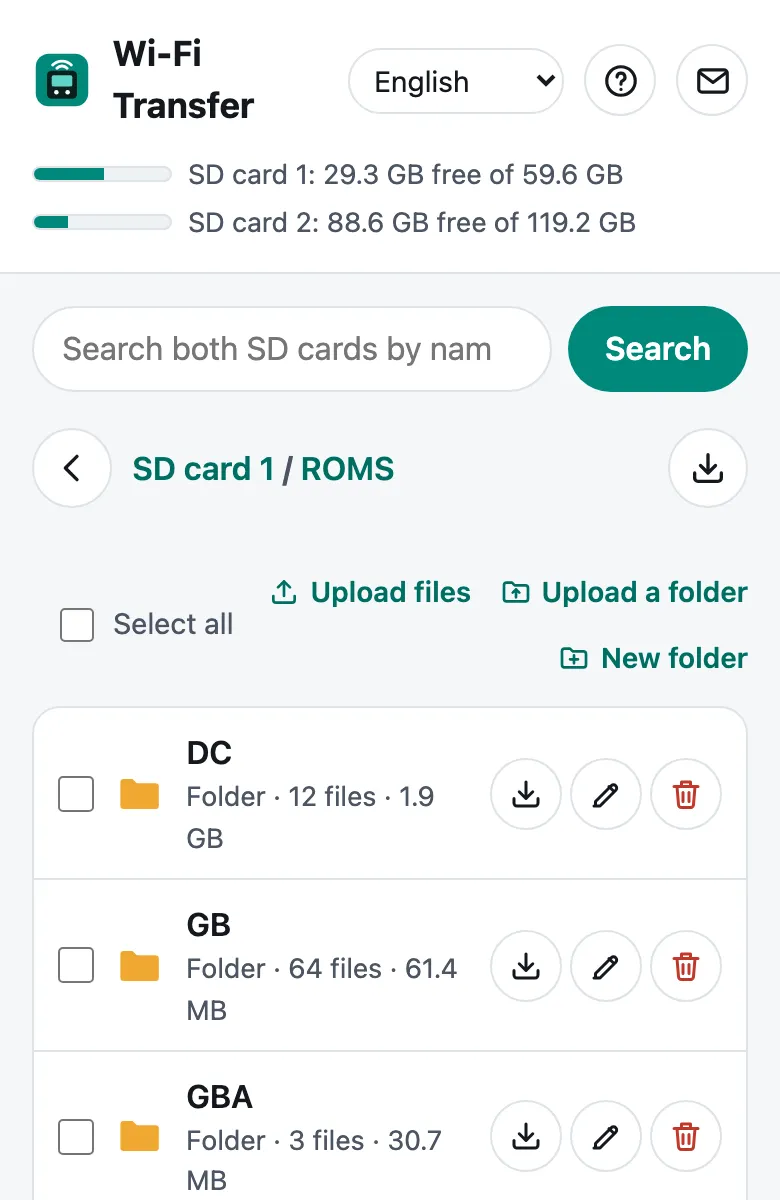
Tap Add games on a card’s tab and each game is sorted automatically (.gba → ROMS/GBA, .sfc → ROMS/SNES…), using muOS’s own folder list. .muxapp apps go to ARCHIVE.
Big files and whole folders
Several files at once, including large ISOs, with progress and speed. Upload whole folders for disc games such as Dreamcast and PS1.
Download anything
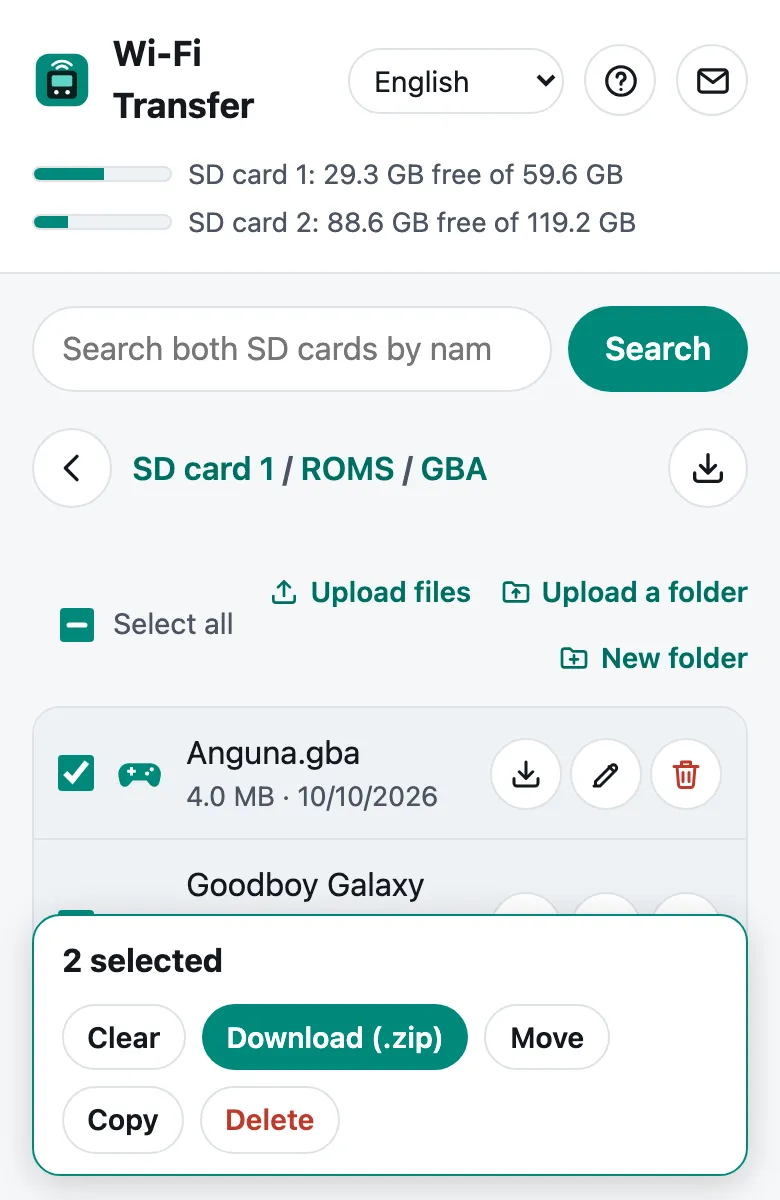
Screenshots and saves to your phone or PC, a whole folder as a .zip, or just the items you tick.
Full SD card backup
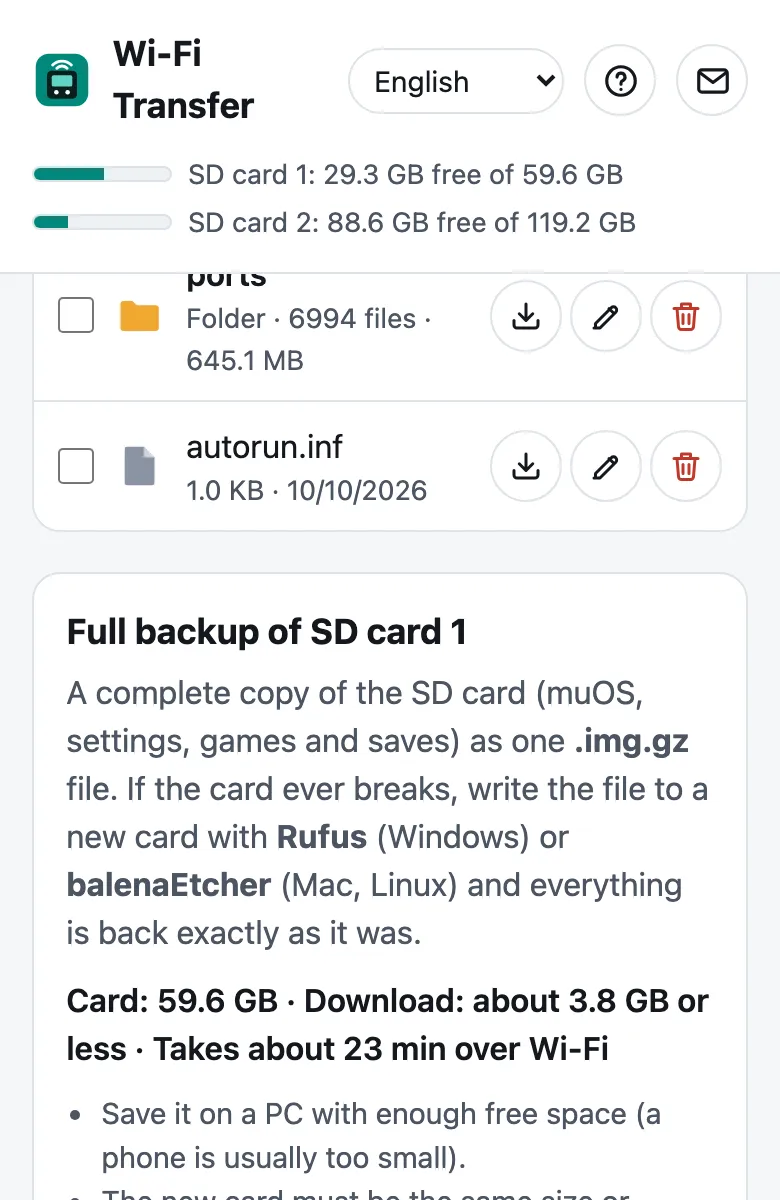
The whole card (muOS, settings, games and saves) as one .img.gz file. Write it to a new card with Rufus or balenaEtcher and everything is back.
Safe by default
A new random PIN every time, local network only, and it stops by itself after 15 idle minutes. Deleting or renaming inside muOS’s own folder asks first.
Both SD cards, as they are
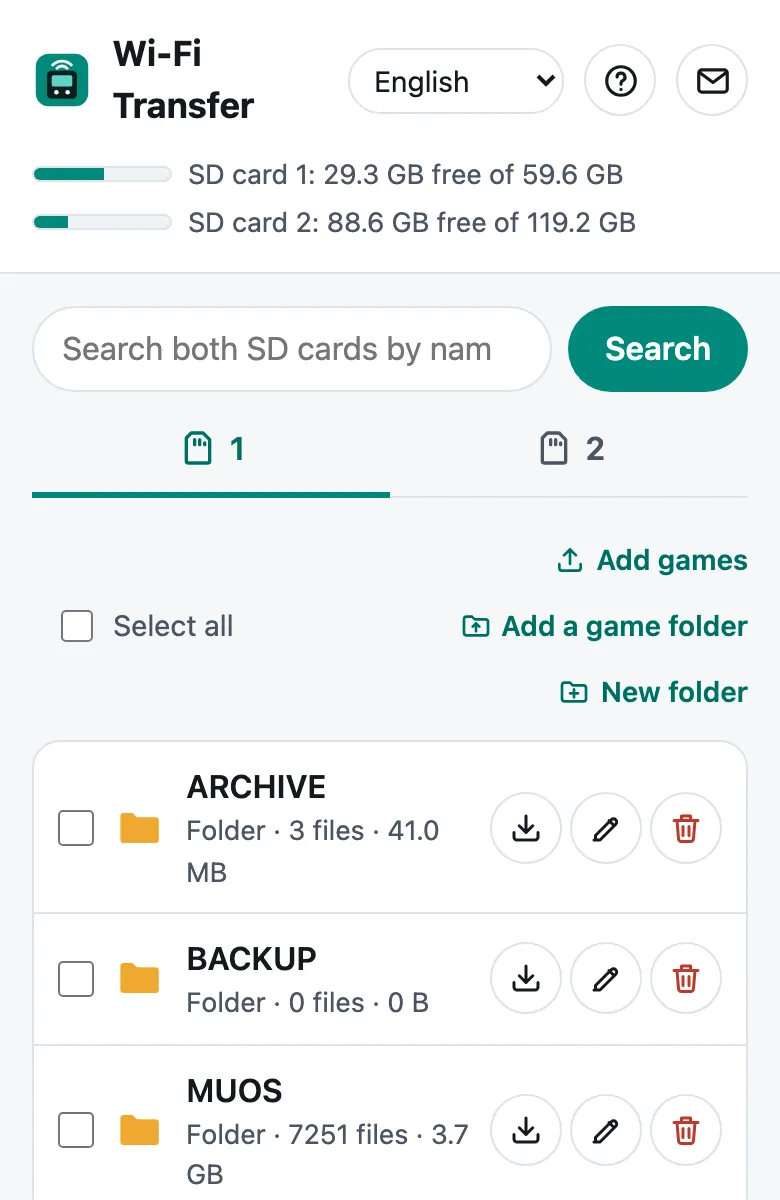
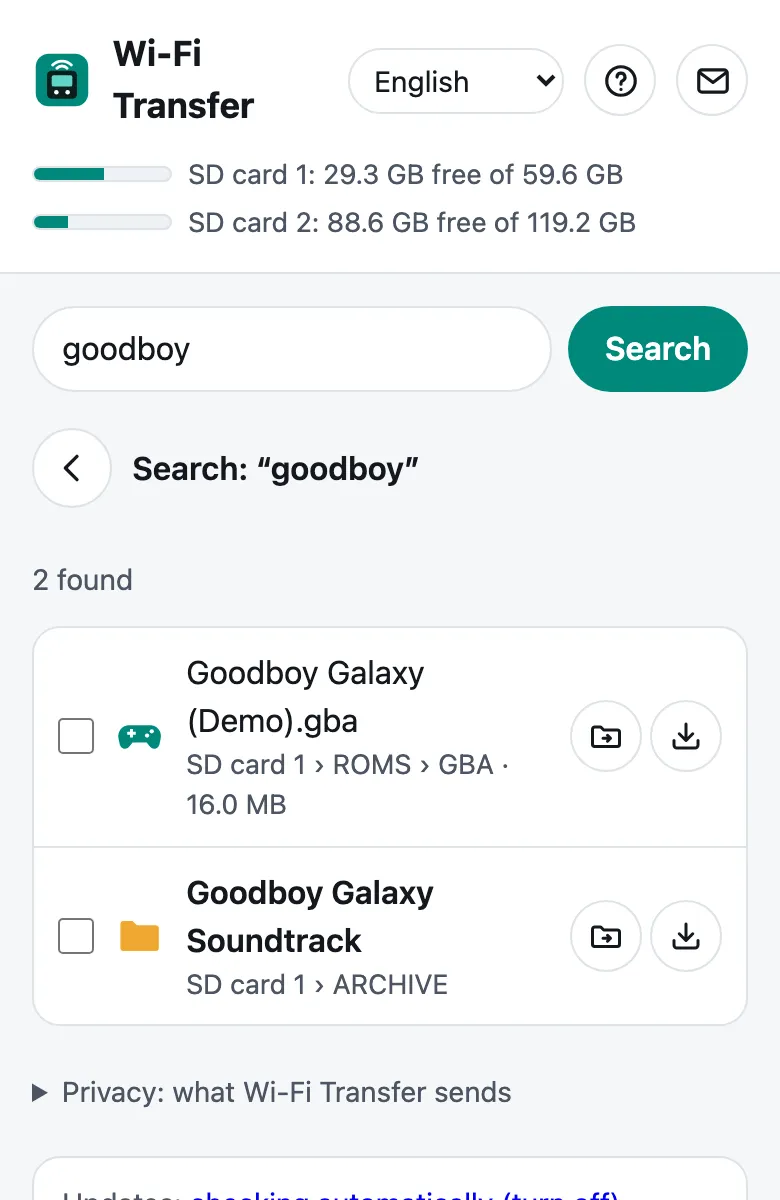
A tab for each card shows every folder and file with its size, and the top of the page shows each card’s free space. Search finds files on both cards by name.
Works in the background
Press X on the game console to go back to the muOS menu or play while the page keeps working.
Screenshots
In your browser
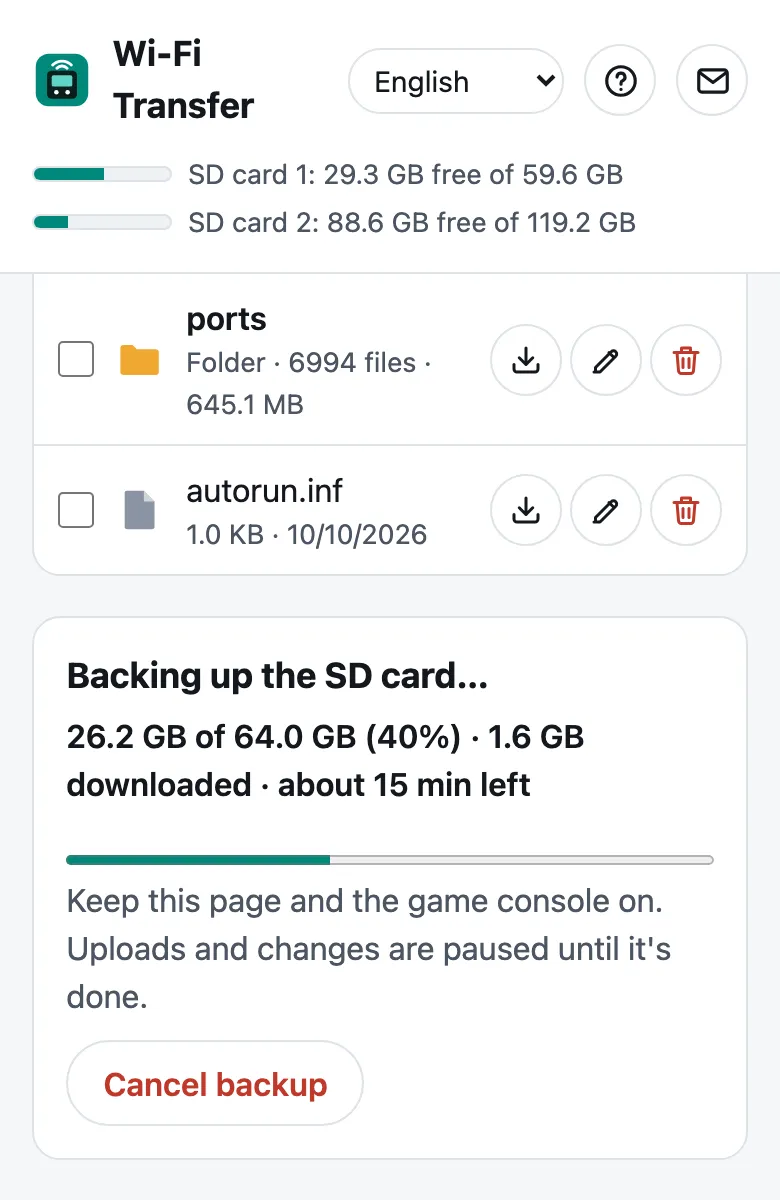
Screenshots from muOS on the Anbernic RG40XXH. Other systems may look a little different.
Full SD card backup
Back up the whole card
One tap below the card tabs downloads all of SD card 1, the card muOS starts from (muOS, settings, games and saves), as one .img.gz file. If the card ever breaks, write that file to a new card with Rufus (Windows) or balenaEtcher (Mac, Linux) and everything is back exactly as it was.
- Only your data is sent. Empty space is skipped, so a 64 GB card with 4 GB on it downloads about 4 GB.
- Save it on a PC with enough free space. It takes roughly 1 hour per 10 GB over Wi-Fi.
- A consistent copy. Uploads and changes are paused while it runs, and the games partition is made read-only during the copy when possible.
- The new card must be the same size or bigger.
- Keep it private. The backup holds your games, saves and BIOS files, so it's for your own use only.
Install
How to install
On muOS
- Download WiFiTransfer-2.0.2.muxapp.
- Copy it to the
ARCHIVEfolder on SD card 1 (create the folder if it doesn't exist). - On the game console, open Applications → Archive Manager and install it.
- Turn on Wi-Fi (Configuration → Connectivity → Wi-Fi Network), then open Applications → Wi-Fi Transfer.
On Anbernic's stock OS
- Download WiFiTransfer-2.1.0-stock.zip and unzip it.
- Copy the contents of its
Roms/APPSfolder (Wi-Fi_Transfer.sh, thewifitransferfolder andImgs) intoRoms/APPSon SD card 1, with a card reader or over Wi-Fi (Samba or SFTP). - Turn on Wi-Fi, then open APPS → Wi-Fi_Transfer.
On the stock OS the full SD card backup and in-app updates aren't available yet: get new versions from this page.
How to use it
- On your phone, scan the QR code, or type the address shown (e.g.
http://192.168.1.23:8080) into a browser on a phone or PC on the same Wi-Fi. - Enter the PIN shown on the game console.
- Pick a card tab. Add games puts each game in the right folder; tick items to download, move, copy or delete them; search finds files on both cards.
- When you're done, press B on the game console. X keeps it running in the background instead.
On the game console, Y makes a new PIN and logs everyone out. The ? button on the page opens the full guide.
Security
The transfer page only runs while Wi-Fi Transfer is open or running in the background, and stops by itself after 15 minutes without activity. It's reachable only from your local network and needs a new random PIN each time; 5 wrong PINs lock that device out for a minute. It shows everything on your SD cards, including muOS's own files in MUOS, and asks first before anything there is deleted or renamed. The page uses plain http:// on your home network, like most device apps, so don't run it on public Wi-Fi.
A full SD card backup holds your games, saves and BIOS files. It's for your own use, so don't share it.
Feedback & bug reports
Found a bug or have an idea? Email feedback@pocketkode.com. If something went wrong, mention your device, muOS version and the browser you used, and attach logs/app.log from the app's folder if you can.