
How to install free homebrew games on muOS with Game Manager
Getting homebrew onto a muOS handheld usually means a computer: find the game, download the right file, work out which ROMS folder it belongs in, copy it over and hope it runs. Game Manager does all of that on the handheld itself, with the controller. This guide walks through setting it up, finding games, what the badges mean, and managing everything you’ve installed.
Tested on: Anbernic RG40XXH · muOS 2601.0 Jacaranda · Game Manager 2.0.0.
Everything Game Manager offers is free and shared by its creators: no ROM sites, no pirated games.
Step 1: Install Game Manager
- Download
GameManager-<version>.muxappfrom the Game Manager page. - Copy it to the
ARCHIVEfolder on SD card 1 (with a card reader or Wi-Fi Transfer). - On the handheld, open Applications → Archive Manager, select the file and press A.
- Turn on Wi-Fi (Configuration → Connectivity → Wi-Fi Network), then open Applications → Game Manager.
New to .muxapp files? See How to install apps on muOS with Archive Manager.
Updates: with START → Settings → Check for updates switched on, Game Manager checks GitHub for new versions. Nothing is installed unless you choose Update.
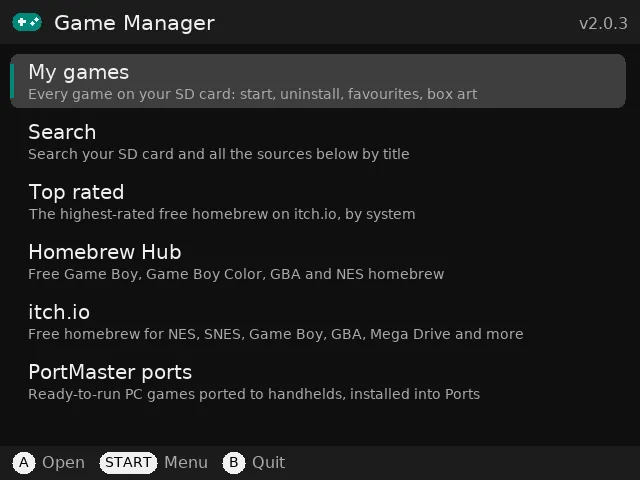
Step 2: Pick where to look
The home screen has three sources and three shortcuts:
| Item | What it is |
|---|---|
| Homebrew Hub | The Game Boy homebrew archive: over 1,100 free Game Boy, Game Boy Color, GBA and NES games |
| itch.io | Free homebrew for NES, SNES, Game Boy, GBA, Mega Drive, Master System and Game Gear |
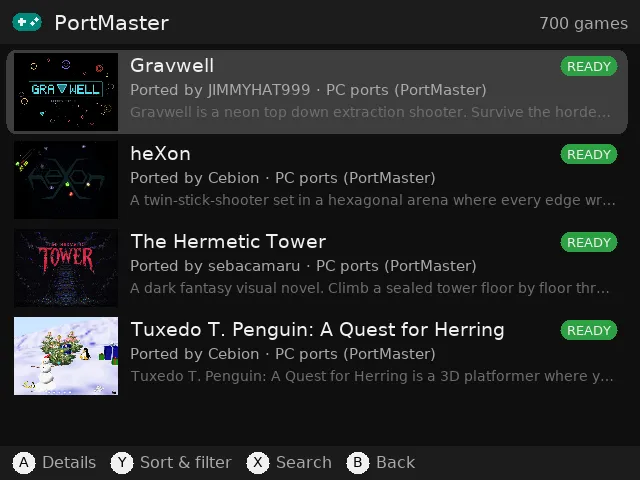
| PortMaster ports | PC games ported to handhelds. Only ports your device can run are shown, and they’re installed with PortMaster’s own installer |
| Top rated | The highest-rated free homebrew on itch.io, by system |
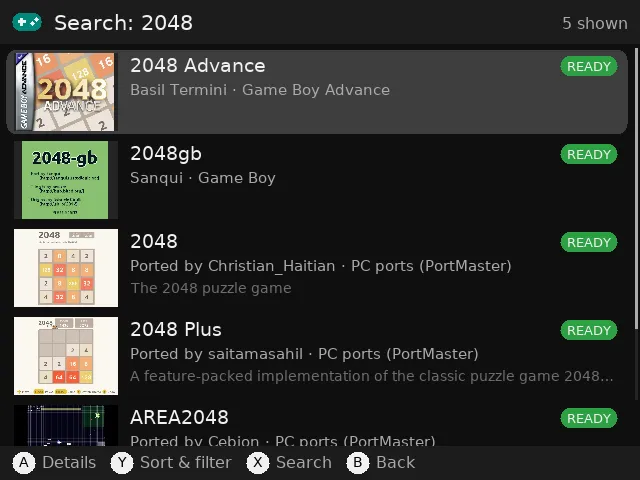
| Search | Searches your SD card and all the sources by title at once. Games you already have come first, marked ON SD CARD, and are found even without Wi-Fi |
| My games | Every game already on your SD card (more on that below) |
Open a source, choose a system, and you get a list with a cover, the developer, a short description and, where there is one, the itch.io star rating.
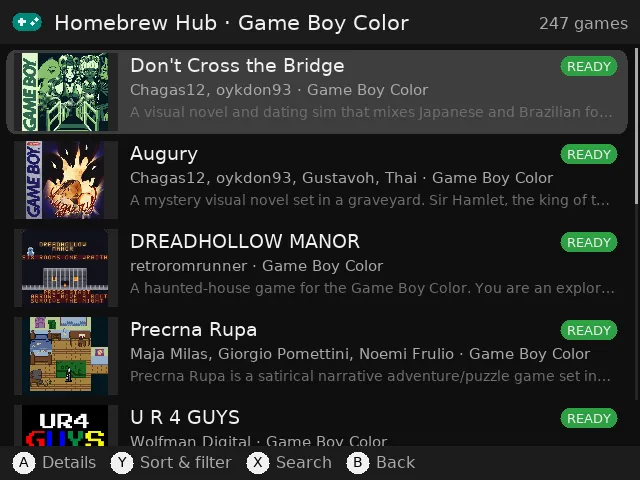
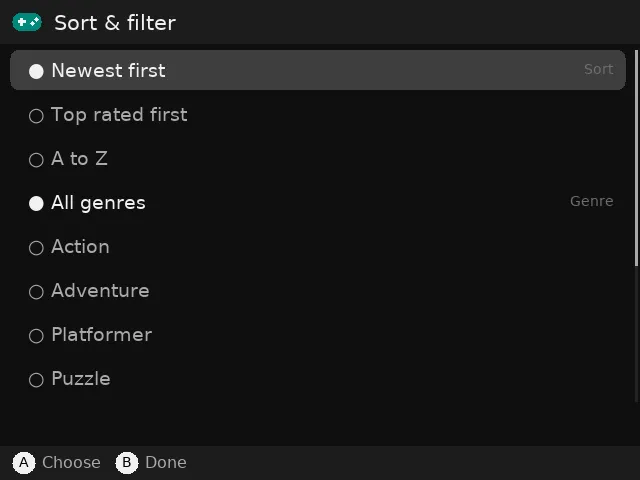
Press Y in any list to sort and filter: newest, top rated or A to Z, and genres such as Action, Puzzle or RPG. Press X to search. More games load as you scroll down.
Step 3: Read the badges
Game Manager checks every game so you know before downloading whether it will run.
| Badge | Meaning |
|---|---|
READY |
Your device has an emulator for this system (read from muOS’s own core list) |
NO EMU |
muOS has no emulator set up for this system on your device |
ROM |
(itch.io) There’s a console ROM among the downloads |
CHECK |
(itch.io) The file names don’t say; the ROM is checked after downloading |
PC ONLY |
(itch.io) Only PC or phone versions, nothing your handheld can run |
INSTALLED |
Already installed with Game Manager |
ON SD CARD |
(search) A game you already have; A starts it |
After downloading, Game Manager also reads the ROM header. That catches text files and PC builds (which are never installed), and it quietly fixes things you’d otherwise run into later:
- A Game Boy game that only works on Game Boy Color goes in the GBC folder.
- Game Boy games with rare cartridge chips are set to use the mGBA core.
- NES games with unusual mappers are set to use FCEUmm, and SNES games with the Super FX or SA-1 chip use Snes9x.
- Master System and Game Gear games are sorted by the region in their header.
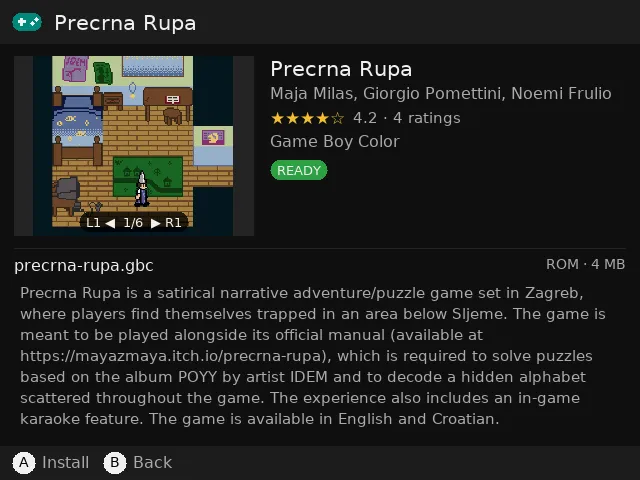
Step 4: Install and try it
Press A on a game to open its page: screenshots (L1/R1), description, rating and license. Press A again to install. If a game offers several files, ◀ ▶ picks another one.
Games go into the ROMS folders muOS already uses (for example your existing GBA folder), with box art and a description, so they look right in muOS’s own menus too.
Then press Y for Try it: the game starts straight away with muOS’s launcher. When you come back, mark whether it worked. In My games it then shows WORKS or DIDN'T RUN. If a game closes within a few seconds, Game Manager warns you.
PortMaster ports are downloaded, checked, and installed with PortMaster’s own installer, exactly as the PortMaster app would do it. If that can’t run, the port is queued and PortMaster finishes installing it the next time you open it.
Step 5: Downloading from itch.io (free API key)
Browsing itch.io works without an account, but downloading from it needs your own free itch.io API key. The official itch.io app works the same way.
- On a computer, log in to itch.io and open itch.io/user/settings/api-keys.
- Click Generate new API key and copy it.
- In Game Manager, press START → Settings → itch.io API key and type it with the on-screen keyboard. Or paste it after
api_key =in the app’sconfig.ini, which is easier over SFTP or with a card reader.
With a key you also get My itch.io library (games you’ve claimed or bought) and itch.io results in Search. The key stays on your handheld and is only ever sent to itch.io. Installing a new version never replaces config.ini, so you only need to enter the key once.
Step 6: My games
My games shows every game on your SD card(s), not just the ones Game Manager installed, grouped by system the same way muOS sees them:
- Recently played and Favourites (press Y on a game to add it).
- Play time from muOS’s own tracker plus the games you start in Game Manager, so every way of playing counts.
- START sorts by A to Z, most played or recently played.
- A starts a game with the core you chose for it in muOS, including standalone emulators like PPSSPP and Flycast.
- PortMaster ports has its own shelf: start or uninstall the ports on your SD card. Ports also show up in Recently played and Favourites.
Box art for your own games: at the bottom of My games, Get box art for all games downloads covers from the libretro thumbnail library (the one RetroArch uses) for games that don’t have one. It even matches older names, like “Sky Blazer (E)” → “Skyblazer (Europe)”.
Multi-file games are handled as one game: the tracks of a .cue/.gdi, the discs of an .m3u, and folder-based games like DC/Sonic Adventure (USA)/.
Uninstalling
In a game’s page or in My games, press X to uninstall. Game Manager removes the game’s files (all of them, for multi-file games), its box art and its description. Your save files are kept, and it never deletes anything outside a system folder.
Quit a stuck game
Some homebrew games and ports have no way to quit. If you started the game from Game Manager (Try it, My games or a search result), hold SELECT + START for 2 seconds: the game closes and you’re back in the app.
Controls at a glance
| Screen | Controls |
|---|---|
| Lists | A details · Y sort & filter · X search · L1/R1 jump · B back |
| Game page | A install · Y try it · X uninstall · L1/R1 screenshots · ◀ ▶ other file · ▲ ▼ scroll |
| My games | A start · Y favourite · X uninstall · START sort |
| Keyboard | A type · B delete · Y space · X shift · L1 clear · START done · SELECT cancel |
| While playing | hold SELECT + START for 2 seconds to quit a stuck game |
Troubleshooting
- “No internet connection”: turn on Wi-Fi in Configuration → Connectivity → Wi-Fi Network.
- “Secure connection failed”: the handheld’s date and time are wrong. Fix them in muOS’s settings.
- A new game doesn’t appear in muOS: go back to the main menu and open the system again.
- Try it closes straight away: see
logs/tryit.login the app’s folder. In muOS you can choose another core for that game. - Games on SD card 2: change
roms_pathinconfig.inito/mnt/sdcard/ROMS.
Looking for something to play?
Start with our list of the best free homebrew games for the RG40XXH: all of them are in Game Manager.
Questions, bugs or ideas? Email feedback@pocketkode.com.
PocketKode makes Game Manager. It isn’t affiliated with Homebrew Hub, itch.io, PortMaster, libretro, muOS or Anbernic. Games belong to their creators.