
Internet radio and podcasts on your Anbernic RG40XXH (muOS), with the screen off
A retro handheld makes a surprisingly good little radio: it has speakers, a headphone jack, Wi-Fi and a battery that lasts for hours when the screen is off. PocketKode Radio turns your muOS handheld into exactly that: thousands of internet radio stations from around the world and podcasts you can stream or download, all with the controller. This guide shows how to set it up and get the most out of it.
Tested on: Anbernic RG40XXH · muOS 2601.0 Jacaranda · PocketKode Radio 2.0.1.
Step 1: Install PocketKode Radio
- Download
PocketKodeRadio-<version>.muxappfrom the PocketKode Radio page (no account needed). - Copy it to the
ARCHIVEfolder on SD card 1 (with a card reader or Wi-Fi Transfer). - On the handheld, open Applications → Archive Manager, select the file and press A.
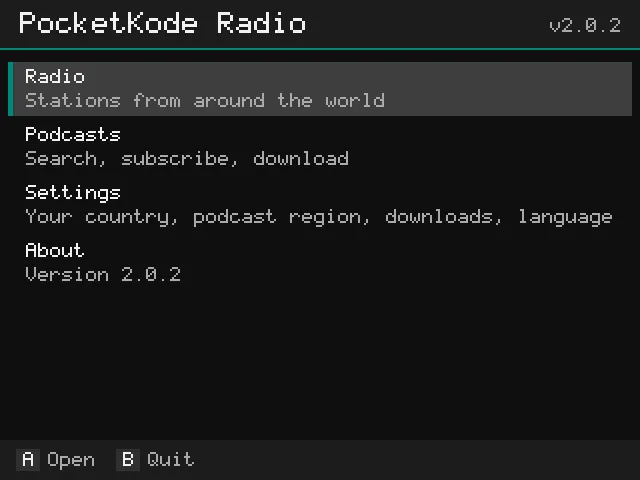
- Turn on Wi-Fi (Configuration → Connectivity → Wi-Fi Network), then open Applications → PocketKode Radio.
New to .muxapp files? See How to install apps on muOS with Archive Manager.
Step 2: Find a station
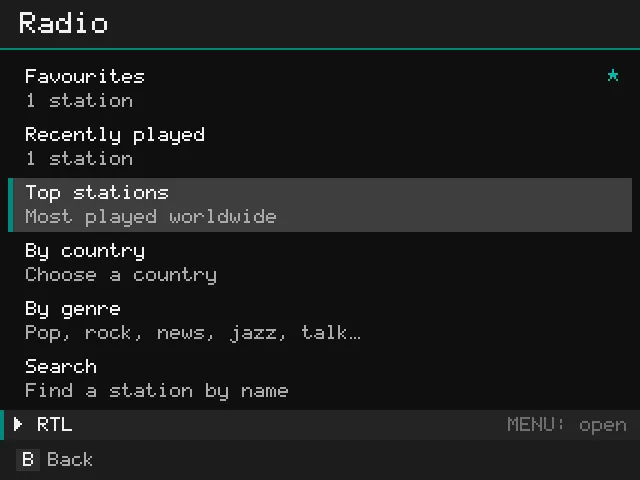
Open Radio. The stations come from Radio Browser, a free, community-run directory with tens of thousands of stations.
| Menu | What it’s for |
|---|---|
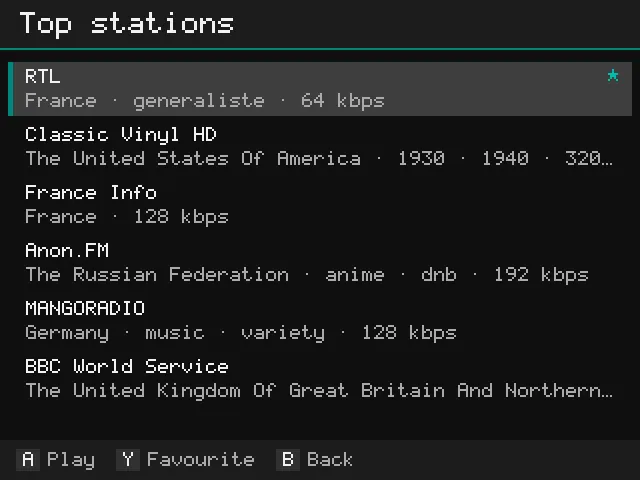
| Top stations | The most listened-to stations worldwide |
| By country | Every country, A to Z, with its number of stations |
| By genre | Pop, rock, news, jazz, talk and many more |
| Search | Find a station by name with the on-screen keyboard |
| Favourites | The stations you saved |
| Recently played | Your last 15 stations |
Two tips:
- Press Y on a station to add it to Favourites, so you find it again in one step.
- In By country, press Y on your own country to make it My country: its stations then get their own entry at the top of the Radio menu.
Step 3: Now playing
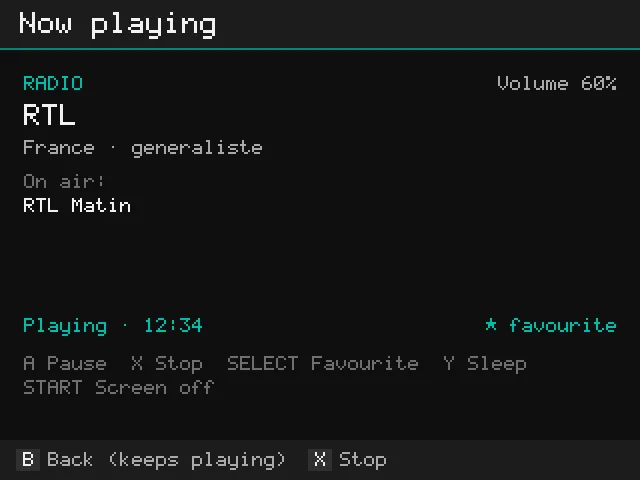
Press A on a station and it starts playing. Many stations also show the song or show that’s on air.
| Button | What it does |
|---|---|
| A | Pause / play |
| SELECT | Add to favourites (radio) or download the episode that’s playing (podcast) |
| START | Screen off |
| Y | Sleep timer: 15, 30, 45, 60 or 90 minutes, or off |
| X | Stop |
| B | Back to the menus: it keeps playing |
| ◀ / ▶ | Podcasts: back 15 seconds / forward 30 seconds |
| L1 / R1 | Podcasts: speed |
For the volume, use the handheld’s own VOL+ / VOL− buttons. Now playing shows the volume at the top right, and “Sound is off: press VOL+” when it’s at 0 or muted.
While something plays, a bar at the bottom of every screen shows it. Press MENU to jump back to Now playing.
Step 4: Turn the screen off to save battery
The screen uses most of the battery. With it off, the handheld plays for much longer:
- On Now playing, press START.
- Or on the home screen, choose Turn off the screen (it’s there while something is playing).
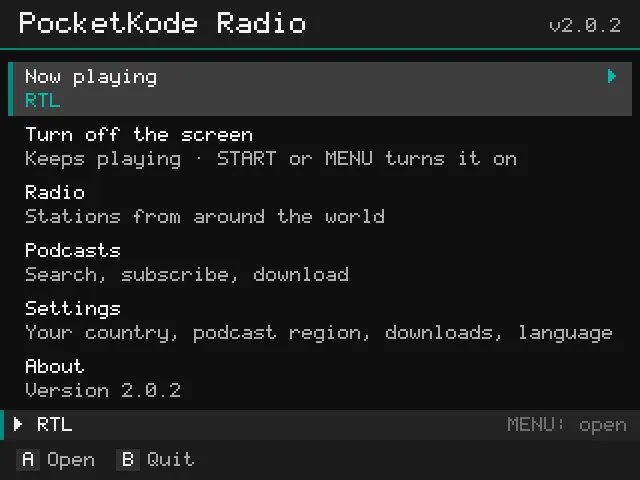
To turn it back on, press START or MENU. Other buttons don’t wake the screen, so a button pressed by accident in a bag or pocket doesn’t wake it, pause the radio or change the station. The volume buttons keep working.
Combine it with the sleep timer (Y) and the radio switches itself off after you’ve fallen asleep.
Step 5: Podcasts
Open Podcasts:
- Search for a show, or browse Top podcasts (Apple’s public podcast charts; pick the country in Settings → Podcast charts).
- Press Y on a show to subscribe: your shows are in My podcasts.
- In a show’s episode list: A plays, X downloads (press again to cancel or delete), Y marks as played.
- Downloaded episodes play without Wi-Fi: download a few at home, then listen anywhere.
- On Now playing, ◀ / ▶ jump back 15 or forward 30 seconds, and L1 / R1 change the speed from 0.75x to 2x.
- Where you stopped is remembered for every episode.
Downloads are kept on the SD card; Settings → Delete all downloads frees the space again (your subscriptions and progress stay).
Updates: the app can check GitHub for new versions (Settings → Check for updates, on or off). Nothing is installed unless you choose Update.
Troubleshooting
- “No internet connection”: turn on Wi-Fi in Configuration → Connectivity → Wi-Fi Network, on a network with internet access.
- “Secure connection failed”: the handheld’s date and time are wrong. Fix them in muOS’s settings.
- A station doesn’t play: stations sometimes go offline or change address; try another one.
- An episode doesn’t stream: Radio downloads it and plays it as soon as the download is done.
- Accented or non-Latin names: Japanese, Chinese, Korean and Cyrillic names are shown with the Noto fonts. When the app is in English, its pixel font shows accented letters without accents. The stations play normally.
- Something else: the logs are
logs/app.logandlogs/mpv.login the app’s folder. Email them to feedback@pocketkode.com with your device and muOS version.
Want to check your handheld’s speakers and battery first? See how to test your RG40XXH with Device Checkup.
PocketKode makes PocketKode Radio. Stations come from the Radio Browser directory and podcasts from Apple’s public podcast directory and each show’s own feed. Nothing is recorded or re-shared: streams and episodes belong to their broadcasters and creators. PocketKode isn’t affiliated with Radio Browser, Apple, muOS or Anbernic.